

Firmware Update Instructions with Developer Studio
- May 30, 2017
- Author: Sierra Wireless
- Version: 1
Procedure to consult list of available firmware of your product and update it using Developer Studio
Check out our new IDE: Legato Plug-in for Visual Studio Code

This page describes the procedure to consult the list of available firmware and update firmware of your product using Developer Studio.
1. Open the Packages Perspective:
Click on 
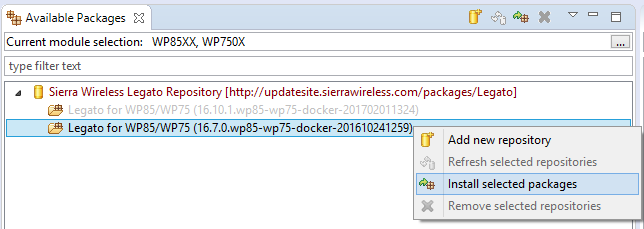
2. Navigate in the list of Available Packages in the left windows, Select the version you need and Install it by clicking right
3. Open the Device Perspective:
Click on 
4. Connect the target's (e.g mangOH) USB cable to your host
5. Click on 
6. Click on 
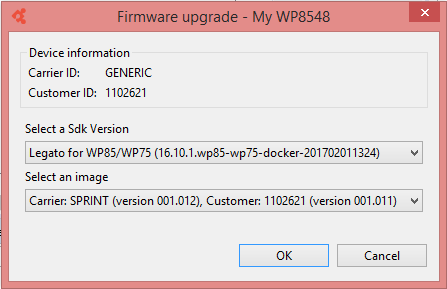
7. Select the Legato sdk version and your carrier then click OK to start the download
Tags
Related items
- Developer Studio
Integrated Development Environment (IDE) for Legato