

Legato Application Development Kit - Windows
- Mar 7, 2018
- Author: Sierra Wireless
Installer for Windows host to develop Legato Applications
Legato Application Development Kit - Windows
Important: Download, installation and use of Legato is subject to the following Legato License and Open Source Licenses.
This guide explains how to install a Windows host IDE with the latest software components:
- Developer Studio (Eclipse IDE) with compiler and toolchain
- USB driver
- Recovery tooling
- Embedded software:
- Legato Linux Distribution (pre-built image inc. kernel, RTFS)
- Legato Application Framework (pre-built image)
- Modem Firmware (binary)
Prerequisites
Minimum Configuration
CPU: Dual Core @ 2.6GHz
RAM: 4GB
HDD: 10GB free space
Windows 7, 8.1 or 10, 64 bits edition
Hardware Assisted Virtualization (BIOS)
Docker VM used by Developer Studio needs Hardware Assisted Virtualization option to be enabled in the BIOS.
In order to check if this option is enabled:
- On Windows 7, please use the Microsoft® Hardware-Assisted Virtualization Detection Tool
- On Windows 8 and Windows 10, choose Start > Task Manager and navigate to the Performance tab. Under CPU you should see the following:
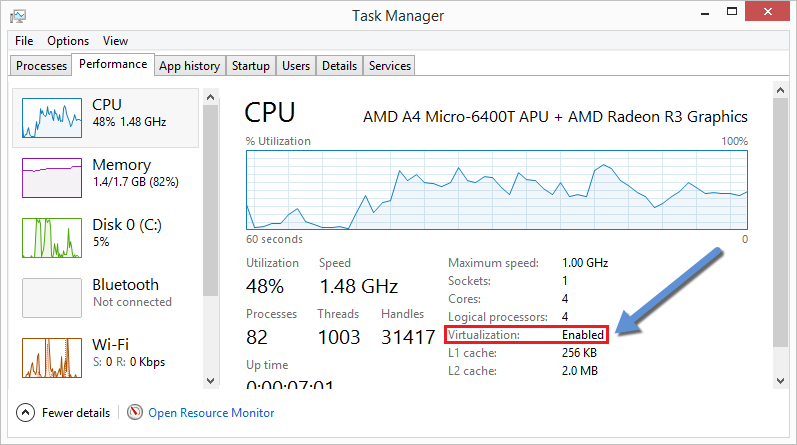
If the option is not enabled, please follow these steps:Note: On Windows 8 and Windows 10, please make sure that Hyper-V feature is NOT enabled in Windows. VirtualBox is not compatible with Hyper-V feature.
- Restart your computer and go to the BIOS (by hitting some function key, depending on your computer manufacturer)
- Locate an enable the Hardware Assisted Virtualization option.
Depending on the manufacturer and on your CPU, it may be called Intel VT-x, AMD-V, Virtualization Technology, or other names.- Save and boot your computer normally.
Java 8 64 bit
Java 8 64 bit is necessary to run Developer Studio.
You can verify your Java version by opening a terminal (use Windows Key + R, then type "cmd"), and enter the following command:Java version should be explicitly displayed, and you return:java -versionIf not, it can be installed from java.com (installer ~60MB)java version "1.8.0_91"
Java(TM) SE Runtime Environment (build 1.8.0_91-b14)
Java HotSpot(TM) 64-Bit Server VM (build 25.91-b14, mixed mode)
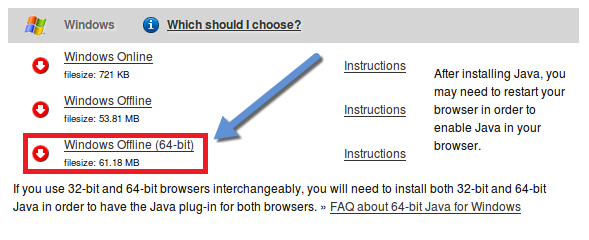
Please make sure to use the Windows Offline (64 bits) installer
VirtualBox
Developer Studio needs VirtualBox 5 in order to build Legato applications.
If it is not already installed, please go to VirtualBox site to download and install VirtualBox (installer ~120MB)
Note that VirtualBox version 5 must be used for Developer Studio, newer versions are not supported.
Install
Download the file for your module (~700MB) and open it to run the installer.
WP760X Release 12 (Legato 18.10.3) Legato Application Development Kit for Windows WP770X Release 9.1 (Legato 18.06.1) Legato Application Development Kit for Windows WP8548/WP750X Release 16.1 (Legato 18.06.4) Legato Application Development Kit for Windows
Alternative installation procedures
For more information concerning Developer Studio installation, please consult complete Developer Studio installation instructions.
For users who intends to install an older Legato version, please download the legato ZIP archive files from Legato Full Installer History.
Tags
Related items
 Legato Application Development Kit - Linux
Installation procedures for Linux host to develop Legato Applications.
 Developer Studio build troubleshooting guide for Windows
This document provides some tips to troubleshoot Legato applications build on Windows hosts